

Documentation Index
Fetch the complete documentation index at: https://docs.ankra.io/llms.txt
Use this file to discover all available pages before exploring further.
Press
⌘+J (Mac) or Ctrl+J (Windows/Linux) to open the AI Assistant from anywhere in Ankra.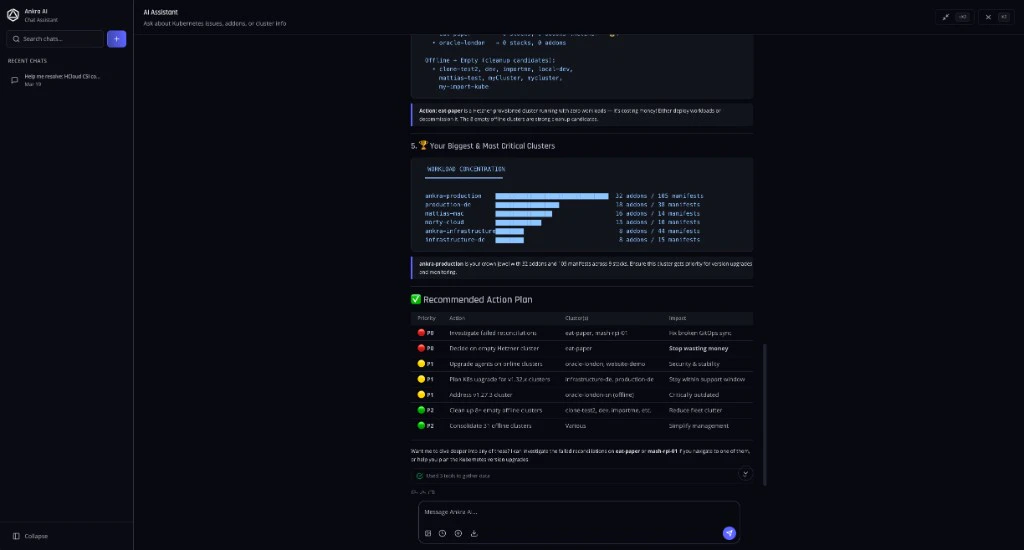
Page-Aware
Automatically focuses on what you’re viewing-open a pod and the AI knows its logs, manifest, and status.
Unified Context
Correlates logs, manifests, Stack configurations, and resource states in one conversation.
Incident Triangulation
Connects symptoms across pods, services, and deployments to pinpoint root causes.
Stack-Aware
Understands your CD pipeline-which Stacks deployed what, when, and with which values.
Page-Aware Context
The AI Assistant automatically knows what you’re looking at. When you open the chat, it focuses on your current view:| You’re Viewing | AI Automatically Knows |
|---|---|
| A Pod | Its logs, manifest, events, resource usage, and parent deployment |
| A Deployment | All replicas, rollout status, associated services, and recent changes |
| A Stack | Installed add-ons, Helm values, deployment history, and dependencies |
| Logs View | The filtered logs, error patterns, and related resources |
| A Service | Endpoints, selectors, connected pods, and ingress rules |
- Looking at a crashing pod: “Why is this failing?” → AI already sees the logs and events
- Viewing a deployment: “Scale this to 5 replicas” → AI knows which deployment
- On the Stack page: “Add Redis to this stack” → AI knows the current stack configuration
The Superpower: Combined Context
What makes Ankra’s AI different is the unified environment. When you ask a question, the AI has access to:| Context Layer | What the AI Sees |
|---|---|
| Pod Logs | Real-time and historical container logs with error patterns |
| Kubernetes Manifests | Your actual deployed YAML-not just documentation |
| Stack Deployments | Which Helm charts were deployed, their values, and versions |
| Resource States | Current status, events, conditions, and health |
| Relationships | Service → Deployment → Pod → Container dependencies |
| Timeline | When deployments happened and what changed |
- “The API is returning 500 errors. Was anything deployed recently that could cause this?”
- “Compare the current nginx config to what was running yesterday”
- “Which Stack change caused the database connection failures?”
Building Stacks with AI Assistance
The AI Assistant helps you plan and optimize Stacks:Describe What You Need
Tell the AI what you want to deploy: “I need a monitoring stack with Prometheus, Grafana, and alerting”
Get Recommendations
The AI recommends add-ons, configurations, and dependencies based on best practices.
Build Your Stack
Add the recommended components to the Stack Builder and configure values based on the guidance.
Example Stack Building Conversations
Creating a Production Stack
Creating a Production Stack
You: “I need to set up a production-ready ingress with TLS”AI: “I recommend adding these components to your Stack:
- cert-manager - For automatic TLS certificate management
- ingress-nginx - Production-grade ingress controller
Optimizing Existing Stacks
Optimizing Existing Stacks
You: “My monitoring stack is using too much memory”AI: “Looking at your current Prometheus configuration in the ‘observability’ Stack, I see retention is set to 30 days with no resource limits. Based on your cluster’s 200 pods, I recommend:
- Set
prometheus.retentionto 15d - Add
resources.limits.memory: 4Gi - Enable
remote_writeto offload historical data…”
Incident Triangulation
When something goes wrong, the AI correlates signals across your entire stack:Check Recent Deployments
“I see the ‘backend’ Stack was updated 2 hours ago with a new database connection pool setting…”
What the AI Triangulates
| Signal | How It’s Used |
|---|---|
| Error Logs | Pattern matching across all pods in the affected service chain |
| Stack History | Recent deployments and value changes that correlate with incident timing |
| Resource Events | Kubernetes events showing restarts, OOMs, and scheduling failures |
| Dependencies | Service mesh, database connections, and external integrations |
| Configuration Drift | Differences between current manifests and last known good state |
What Can You Ask?
Incident Response
Incident Response
- “Why is the checkout service timing out?”
- “What changed in the last hour that could cause this?”
- “Compare pod logs before and after the deployment”
- “Which upstream service is causing the 503 errors?”
Stack Building
Stack Building
- “Help me create a logging stack with Loki and Promtail”
- “What’s the best way to configure ingress for multiple domains?”
- “How should I set up database backups in my Stack?”
- “Add monitoring to my existing application Stack”
Configuration Analysis
Configuration Analysis
- “Is my resource limit configuration correct for this workload?”
- “Why is this HPA not scaling?”
- “Explain the network policies affecting this service”
- “What secrets does this deployment need?”
Root Cause Analysis
Root Cause Analysis
- “Why did this pod get OOMKilled?”
- “What’s causing intermittent connection resets?”
- “The deployment rollout is stuck-what’s blocking it?”
- “Why are requests failing only to certain pod replicas?”
Getting Started
Open the AI Assistant
Click the chat icon in the bottom-right corner of any cluster page, or use the Command Palette (
⌘+K / Ctrl+K) and search for “AI Chat”.Ask Your Question
Type your question in natural language. The assistant understands context about your current cluster and can help with:
- “Why is my pod crashing?”
- “Explain this deployment configuration”
- “How do I set up ingress?”
- “What’s wrong with this service?”
Review the Response
The AI provides detailed explanations, code examples, and actionable steps. You can ask follow-up questions to dive deeper.
Key Features
Context-Aware
The assistant understands your current cluster, namespace, and the resources you’re viewing for more relevant answers.
Troubleshooting Mode
Click “Troubleshoot” on any failing resource to get an AI-powered analysis of what’s wrong and how to fix it.
Chat History
Your conversations are saved and searchable. Access previous chats from the Command Palette or chat panel.
Multiple AI Models
Choose from different AI models based on your needs-faster responses or more detailed analysis.
Troubleshooting Resources
When viewing a Kubernetes resource (pod, deployment, service, etc.), you can click the Troubleshoot button to start an AI-assisted diagnosis:- Navigate to the resource in the Kubernetes browser
- Click Troubleshoot in the resource details
- The AI will analyze:
- Current resource state and events
- Related resources and dependencies
- Recent changes and logs
- Receive actionable recommendations
Chat History
Access your previous conversations:- Command Palette: Press
⌘+Kand search for “Chat History” - Chat Panel: Click the history icon in the chat header
- Search: Find past conversations by keyword
Best Practices
Privacy & Data
- Conversations are stored securely and associated with your account
- Cluster metadata may be shared for context (resource names, states, events)
- Sensitive data like secrets or credentials are never sent to the AI
- You can delete your chat history at any time
Still have questions? Join our Slack community and we’ll help out.